Installation successful
Welcome to TicketDesk
CRM Quickstart Guide
TicketDesk is now connected and ready to manage customer support directly within your CRM.
Follow this quick-start guide to become familiar with the essential TicketDesk screens and start managing customer service with confidence.
1. Open TicketDesk
Follow these steps to get started.
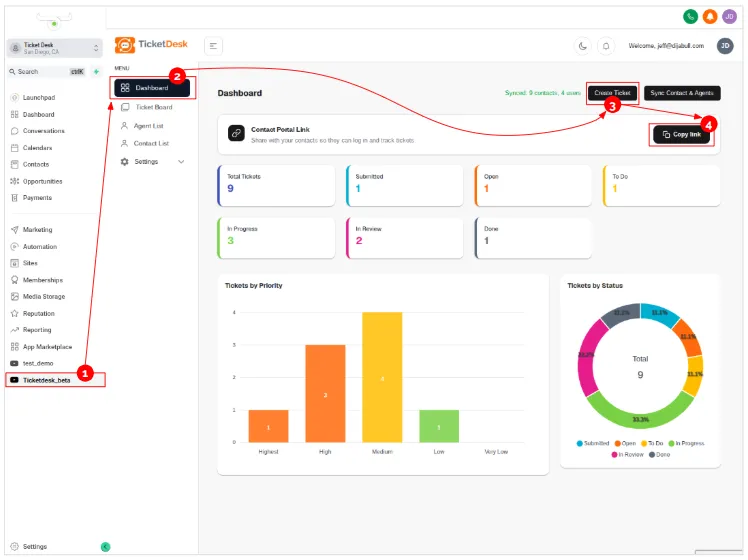
From the CRM's left-side menu, click the TicketDesk App module. TicketDesk will open directly within the CRM.
From the TicketDesk navigation menu, click Dashboard to access your TicketDesk workspace.
From the Dashboard, click Create Ticket to create your first service ticket.
Connect Your Customers:
TicketDesk also provides each account with a Customer Portal Link that allows customers to access their own TicketDesk portal and submit service requests directly into your ticket queue.
Click Copy Link to copy your unique Customer Portal URL, then share it with your customers by email or SMS.
The Customer Portal provides a familiar, streamlined experience that mirrors the core TicketDesk interface, making it easy for customers to submit and manage their service requests.
2. Create a Ticket
Create and submit your first service ticket.
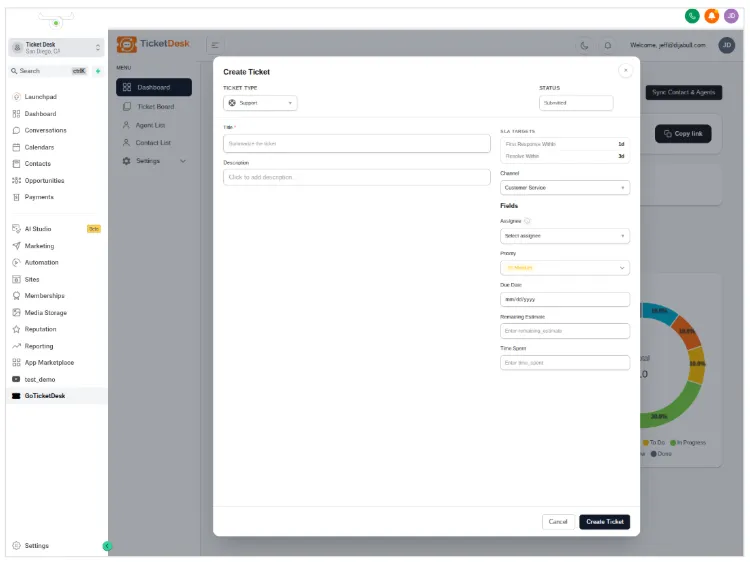
From the Dashboard, click Create Ticket to open the ticket submission form.
Complete the required fields to define the customer service request, then click Create Ticket to submit the request and add it to your ticket queue.
3. TicketBoard Review
View, Manage, and Organize Your tickets.
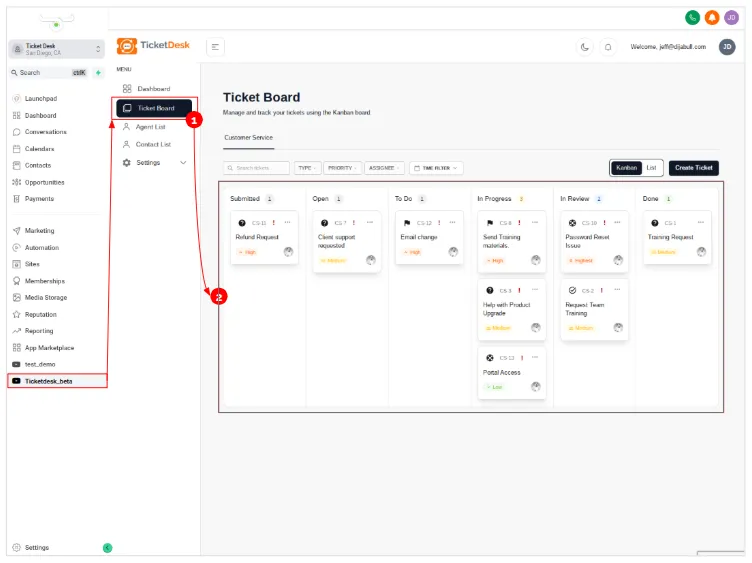
From the TicketDesk navigation menu, click TicketBoard to access your ticket workspace. The TicketBoard provides your team with a visual overview of customer service activity and ticket status.
Use the intuitive drag-and-drop interface to organize, prioritize, and move tickets through your service workflow. Select any ticket to view its details, communicate with the customer, update its status, and manage the work required to bring the request to resolution.
Built to help you succeed with Customer Service.


Products
Other Links
Copyrights 2026 | TicketDesk | All Rights Reserved. | Privacy Policy | Terms & Conditions